US micro-business owners and online sellers - Etsy and marketplace sellers, local service providers and single-person LLCs - who file a Schedule C and do their own bookkeeping.
How it works
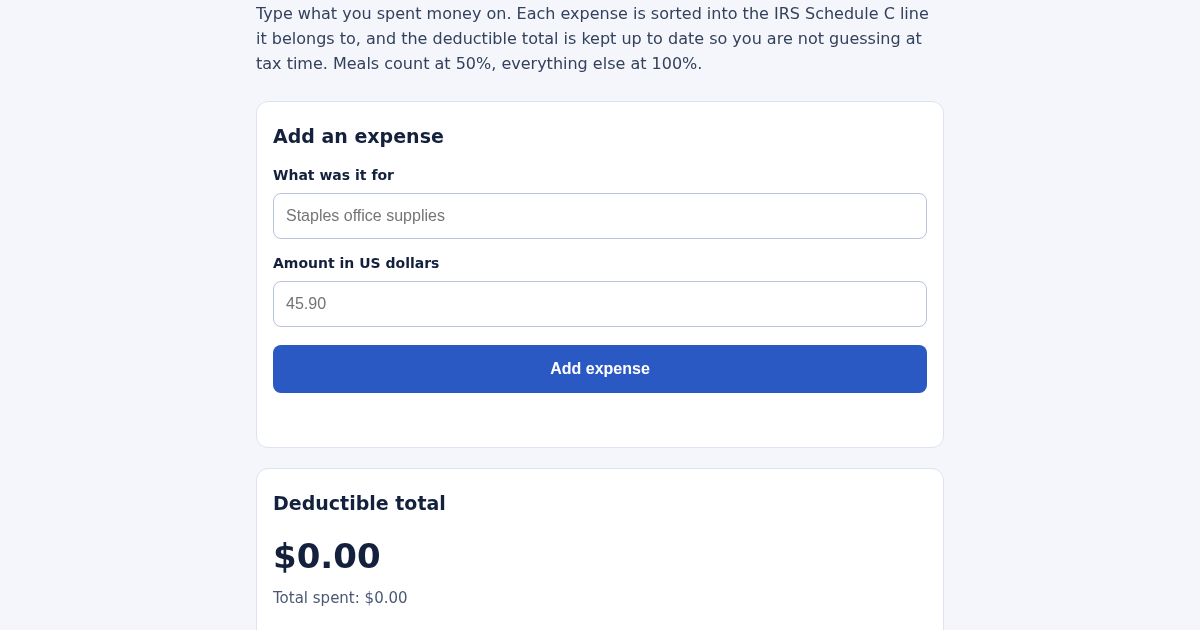
- Type what the expense was for, for example "Staples office supplies".
- Type the amount in US dollars, for example 45.90.
- Press Add expense: it is filed under its Schedule C category right away.
- Read the deductible total and the per-category subtotals at any time; they are kept between visits.
What you gain
- Every expense you type lands on the exact Schedule C line it belongs to, with meals already split at 50% — ready to copy onto the return instead of re-sorted by hand at tax time.
Screenshot
Technical details
How to set up & use
- Buy the license — your key (lic_...) appears on the order page and in your email.
- Sign in at app.synoriaai.com with your license key.
- No installation — the product runs in your browser, on your own isolated instance.
- 1. Open the app and type a short description of the expense (e.g., 'Staples office supplies') into the description field.
- 2. Enter the dollar amount in the amount field.
- 3. Click the 'Add' button. The expense is instantly assigned to its IRS Schedule C line (e.g., 'Office expense' or 'Car and truck expenses').
- 4. Repeat for each expense. The list shows each entry with its category, and the deductible total updates automatically—meals are counted at 50%, everything else at 100%.
- 5. Use the per-category subtotals to copy the numbers directly onto your Schedule C form.
Frequently asked questions
Is my financial data safe?
Yes—all records are stored only in your browser's local instance. There is no account, no cloud sync, and no bank connection. Your data never leaves your device.
How does the categorizer decide the category?
It uses deterministic keyword rules with word-boundary matching. The same description always yields the same category, so results are consistent and predictable—no AI guesswork.
Can I accidentally double-count a receipt?
No. Duplicate entries (same description and amount) are automatically refused, so each receipt can only be added once.
Related products
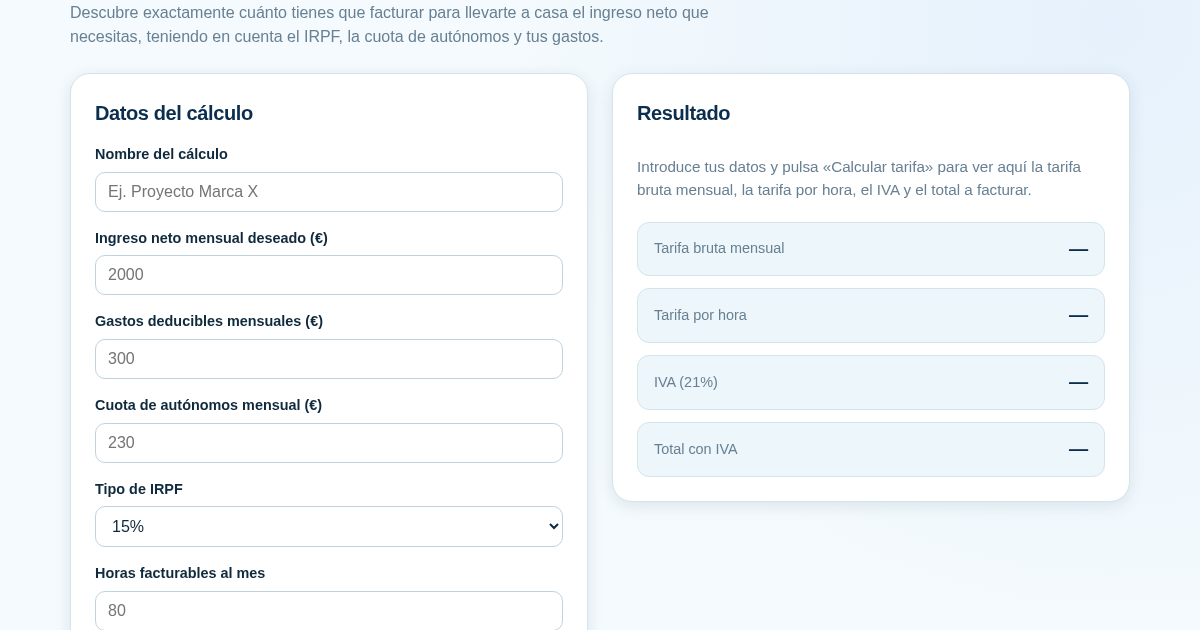
Calculadora de Tarifas para Autónomos
Muchos autónomos fijan sus tarifas sin saber cuánto necesitan facturar realmente para alcanzar el ingreso neto que quieren. Esta calculadora parte del neto mensual deseado y calcula la facturación bruta necesaria…
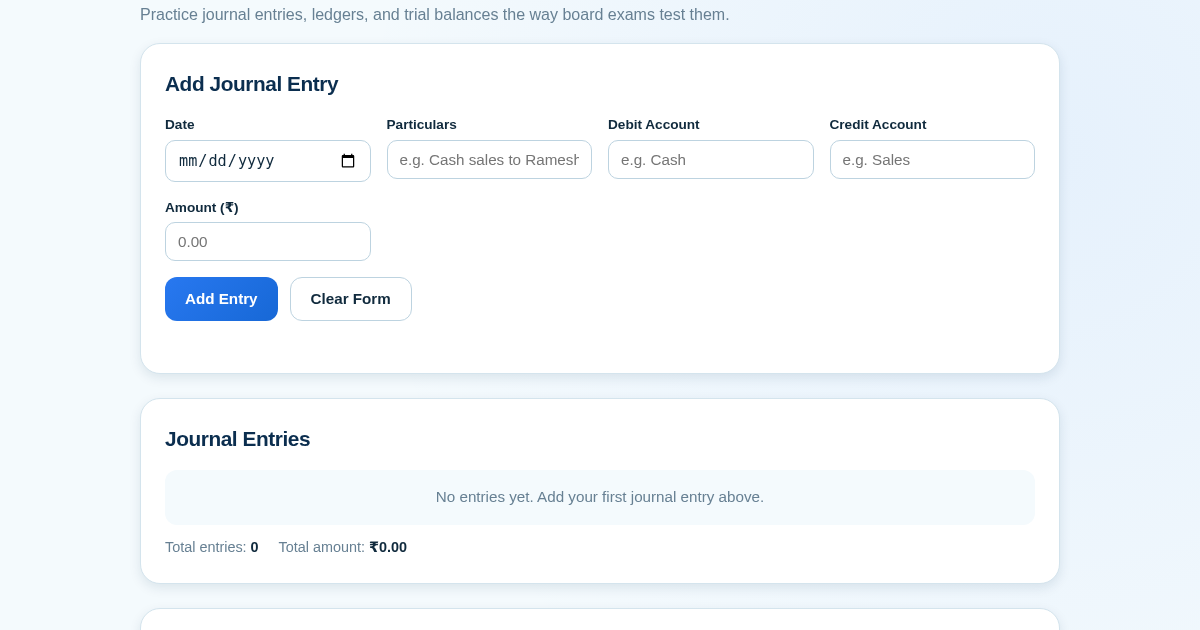
Ledger & Trial Balance Practice Tool
Commerce students in Class 10-12 need to practice journal entries and see how they flow into ledgers, trial balances, and balance sheets for board exams. This tool lets them enter transactions and instantly see the…
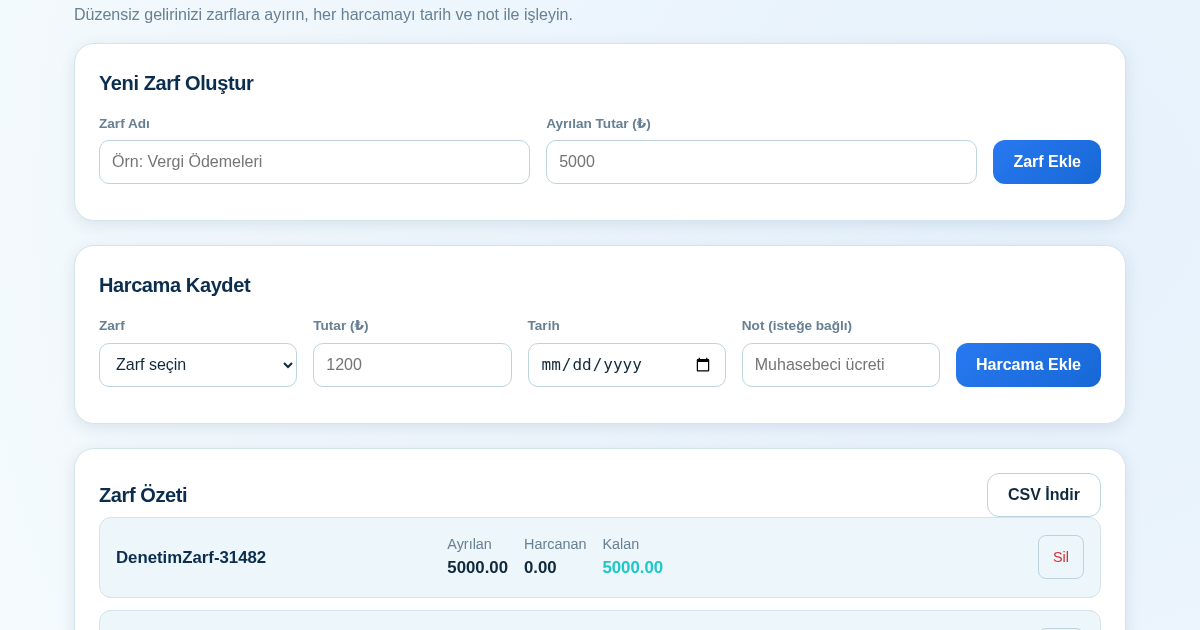
KASA - Serbest Çalışanlar İçin Zarf Bütçesi
Serbest çalışanlar düzensiz gelirlerini vergi, kira ve yaşam giderleri gibi zarflara bölerek bütçelerini düzenli tutabilir. Her harcamayı tarih ve not ile ilgili zarfa işleyerek ne kadar ayırdığını ve ne kadar…
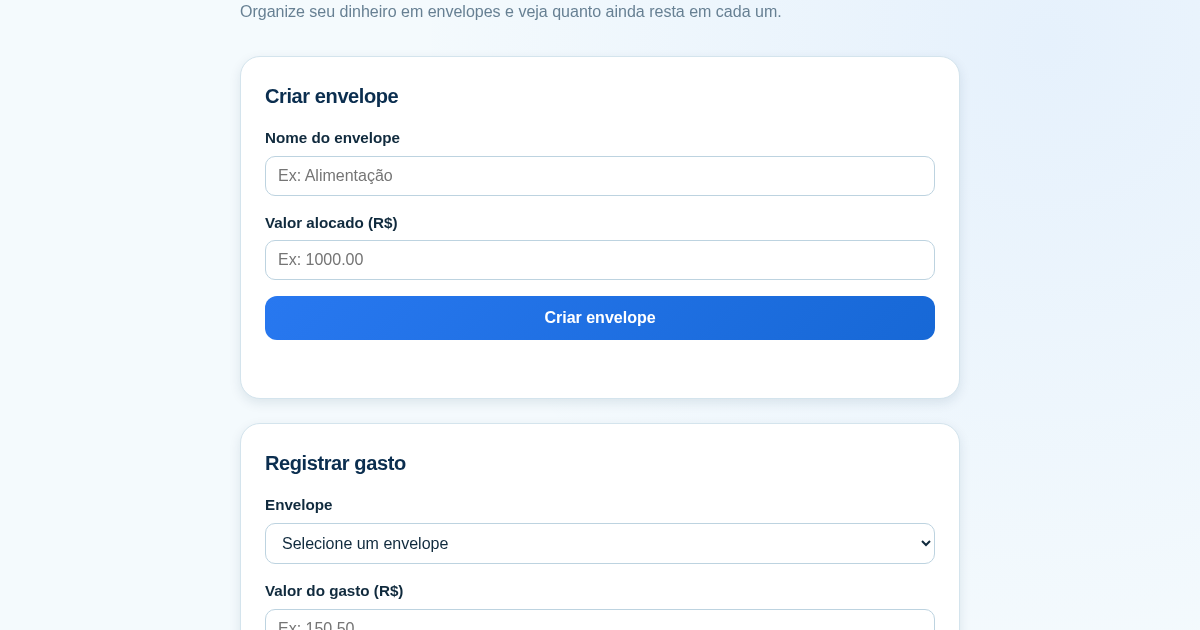
Calculadora de Orçamento por Envelopes (Pix)
Este aplicativo ajuda brasileiros a organizar seu dinheiro em envelopes de orçamento, como alimentação, transporte e lazer, sem precisar conectar uma conta bancária. Ele resolve o problema de controlar gastos do dia a…